Optimizely CMS SaaS – Chrome Extension to Stop Accidentally Editing Production

If you work with Optimizely CMS SaaS across multiple clients, you know the anxiety — multiple tabs, multiple environments, and one wrong edit away from breaking a live site.

At Horizontal Digital, we manage several Optimizely CMS instances for different clients, each with production and test environments. The Optimizely UI looks identical across all of them. The only difference? A small label buried in the top nav: “hodi01saas: Production1” vs “hodi01saas: Test1”. Easy to miss when you’re moving fast.

So I built a Chrome extension to make it impossible to miss.

What It Does

The Optimizely CMS PROD Indicator extension does three things when it detects you’re on a Production1 environment:

  • Adds a bold red border around the entire browser viewport
  • Prefixes the browser tab title with [PROD – Client Name]
  • Shows a small “PROD” label in the left panel area

It works across all clients automatically — it reads the org name (e.g., “ClientA”, “ClientB”) directly from the CMS nav and includes it in the indicator so you always know which client’s production you’re in.

On Test1, Test2, or any non-production environment? Nothing shows up. Clean UI, no distractions.

How It Works

Optimizely CMS SaaS uses Web Components with shadow DOM for its navigation, which means standard document.querySelector calls can’t reach the nav labels. The extension recursively pierces nested shadow roots to find the environment label, checks if it contains "Production1", and only then injects the indicators.

It also watches for the components to hydrate (they load asynchronously) using a MutationObserver, so it works reliably on page load. No data is collected, no network requests — everything runs locally in the browser.

Install It

The extension is available on the Chrome Web Store — search for Optimizely CMS PROD Indicator or click here to install.

For fellow Optimizely developers and agency folks managing multiple client environments, I hope this saves you the same stress it saves our team. Drop a comment below if you have feedback or feature requests!

Optimizely SaaS CMS Contracts: Define Shared Structure Across Content Types

📌 Scope: This post covers Optimizely CMS (SaaS) only — using the @optimizely/cms-sdk toolchain. CMS 13 (PaaS) handles shared structure differently via .NET interfaces.

When you’re building a multi-content-type site, you quickly run into a problem: Blog Articles, Press Releases, and News Pages all need category and tags — but without a shared structure, you end up defining those fields three times and writing three separate Graph queries to retrieve them.

Contracts solve this. Define shared properties once on a Contract, apply it to any number of content types, and Optimizely Graph automatically exposes a unified query interface across all of them.

What is a Contract?

A Contract (also called an interface) defines a set of properties that any content type can implement. Once a content type implements a Contract, it’s guaranteed to have those fields — and Optimizely Graph automatically exposes a unified GraphQL interface for querying all implementing types in one call.

Why use Contracts?

Three concrete benefits:

1. Guaranteed consistency across content types. Define Category and Tags on a Categorizable contract. Apply it to Blog Article, Press Release, and News Page. Every one of those content types will always have those fields — editors can’t skip them, and developers don’t need to check for them per type.

2. One GraphQL query for all implementing types. Instead of writing three separate Graph queries and merging results client-side, you write one query targeting the Categorizable contract and get all content back in a single call. Inline fragments (... on BlogArticle) let you pull type-specific fields on top.

3. Front-end decoupling. Your React/Next.js components can be written against a contract interface rather than a specific content type. A <CategoryFilter /> component that works with any Categorizable content doesn’t need to know whether it’s rendering a blog post or a press release.

How: Define a Contract in code

The cleanest way is in your codebase using @optimizely/cms-sdk, then push it to CMS with the CLI. This keeps your contracts in version control alongside your content types.

Define the contract:

// src/contracts/Categorizable.ts
import { contentType } from '@optimizely/cms-sdk'
export const CategorizableContract = contentType({
key: 'Categorizable',
baseType: '_component', // contracts use _component as their base
properties: {
category: {
type: 'string',
displayName: 'Category',
indexingType: 'queryable',
},
tags: {
type: 'array',
items: { type: 'string' },
displayName: 'Tags',
indexingType: 'queryable',
},
},
})

Apply it when defining a content type:

// src/content-types/BlogArticle.ts
import { contentType } from '@optimizely/cms-sdk'
import { CategorizableContract } from '../contracts/Categorizable'
export const BlogArticleContentType = contentType({
key: 'BlogArticle',
baseType: '_page',
contracts: [CategorizableContract], // ← implements the contract (IMP NOTE : A content type can extend multiple contracts by passing an array)
properties: {
heading: {
type: 'string',
displayName: 'Heading',
indexingType: 'searchable',
},
body: {
type: 'richText',
displayName: 'Body',
},
// category and tags come from the contract — no need to repeat them here
},
})

Push both to CMS in one command:

npx @optimizely/cms-cli@latest config push optimizely.config.mjs
After pushing, run CMS → Settings → Scheduled Jobs → Graph Reindex to update the GraphQL schema. The Categorizable interface will appear as a queryable type in Graph within minutes.

How: Create a Contract in the CMS UI

If you prefer the no-code route: Settings → Content Types → Create New → Contract. Fill in the Name (programmatic key), Display Name, and Description, then add properties.

Once the contract exists, open any content type (e.g. Blog Article), go to its Contracts tab, and select the contract to implement it.

Note: Create the properties on the content type before applying the contract — the CMS binds existing properties to contract properties during assignment.

How: Query via Optimizely Graph

Once a contract is defined and content types implement it, Graph exposes the contract as a queryable type. Query all categorizable content with a single call, and use inline fragments for type-specific fields:

query GetCategorizableContent {
Categorizable(where: { category: { eq: "Product Launch" } }) {
items {
_metadata {
key
displayName
url { default }
}
category
tags
# Type-specific fields via inline fragments
... on BlogArticle {
heading
body { html }
}
... on PressRelease {
headline
publishDate
}
... on NewsPage {
summary
}
}
}
}

One query. Multiple content types. No client-side merging. This is the power of contracts over trying to union separate Graph queries in your front-end code.

Practical contract patterns

Contract namePropertiesWho implements it
Categorizablecategory, tagsBlog, News, Press Release
SEOMetadatametaTitle, metaDescription, canonicalUrlAll page types
PublishablepublishDate, expiryDate, authorBlog, Article, Event
HeroBlockheroImage, heroHeadline, heroCTALanding Page, Campaign Page, Home Page
Note : A content type can extend multiple contracts by passing an array e.g. extends: [SEOContract, TrackingContract], // Multiple contracts. When a content type extends contracts:
- Properties defined directly on the content type override any inherited properties with the same key
- All contract properties are merged into the content type
- If multiple contracts define the same property key, the rightmost contract wins

Gotchas

Properties must exist on the content type before you apply the contract. In Optimizely SaaS you define the properties on the content type first, then bind them to the contract. If you use the code-first SDK approach with the contracts array, this is handled automatically on push — no manual binding needed.

Always reindex Graph after changes. New contracts and updated implementations don’t appear in the GraphQL schema until you run a Graph Reindex job. In development this is easy to forget — build it into your CLI push workflow.

Set indexingType: 'queryable' on contract properties you’ll filter by. The default is searchable (full-text), which is fine for body text. But for fields like category or publishDate where you’re filtering/sorting — not full-text searching — use queryable for better Graph performance.

Quick checklist

  • ☐ Contract defined with contentType() in code (or via CMS UI)
  • ☐ Pushed to CMS with cms-cli config push
  • ☐ Content types have contracts: [MyContract] (or assigned via UI)
  • ☐ Graph Reindex run after push
  • ☐ Contract properties use indexingType: 'queryable' for filter fields
  • ☐ Front-end queries target the contract type, not individual content types

Understanding Optimizely Graph: Caching, Webhooks & Avoiding Stale Content (Optimizely SaaS CMS)

📌 Scope: This post covers Optimizely CMS (SaaS) only — using the official @optimizely/cms-sdk and @optimizely/cms-cli packages with Next.js 15. If you’re on Optimizely CMS 13 (PaaS/DXP), the caching architecture and tooling are different. See the DXP ISR docs for that path.

Your editor hit Publish. Five minutes later the page still shows the old headline. Sound familiar?

This is the most common pain point after go-live on Optimizely SaaS CMS. The content is correct in the CMS — but something between the CMS and the browser is holding onto an old version. This post explains exactly what that something is, why there are three independent caches involved, and how to wire up webhooks using the content-js-sdk so your site updates within seconds of every publish.

What is Optimizely Graph?

Optimizely Graph is the GraphQL delivery API that sits between your CMS content and your Next.js front end. Instead of calling the CMS APIs directly, your app queries Graph — a hosted, indexed, search-optimised GraphQL service at cg.optimizely.com/content/v2.

When an editor publishes content, the CMS syncs it into Graph’s index. Your front end queries Graph to get the latest version. Simple in theory — but each step has its own cache, and each cache can serve stale data if not managed correctly.

The three cache layers

Every browser request passes through three independent caches. Understanding each one is the key to avoiding stale content.

Layer 1 — Optimizely Graph cache

The first cache lives inside Optimizely Graph itself. It caches GraphQL query responses with a TTL that’s tied to your content’s StopPublish date — if content expires at a known time, Graph’s cache purges automatically. On publish events, Graph invalidates the relevant cached responses within seconds.

Important: Graph cache eviction has no timing guarantee. The @optimizely/cms-sdk's getClient() is smart about this — it does not use the cached Graph response when resolving paths inside a webhook handler. This is one reason to use the SDK rather than raw fetch for webhook path resolution.

Layer 2 — Next.js ISR cache

The second cache is your Next.js app’s own ISR (Incremental Static Regeneration) cache. When you set export const revalidate = 60 on a page, Next.js caches the rendered HTML and serves it for up to 60 seconds. You invalidate this cache with revalidatePath().

On Vercel, ISR cache invalidation propagates automatically across all serverless instances — no shared cache backend needed. This is one of the big advantages of deploying to Vercel for an Optimizely SaaS project.

Self-hosted / multi-pod only: If you run Next.js on your own infrastructure with multiple pods, the default filesystem ISR cache is per-instance. You'll need a Redis-backed custom cache handler so that revalidatePath() propagates across all pods. This is not needed for Vercel or Netlify deployments.

Layer 3 — CDN / edge cache

The third cache is your CDN. On Vercel, calling revalidatePath() automatically purges Vercel’s Edge Network cache for that path — no extra step required. If you use a separate CDN (Cloudflare, Fastly, AWS CloudFront), you’ll need to call its purge API explicitly after revalidation.

Fixing it: on-demand revalidation with content-js-sdk

Time-based ISR (revalidate: 60) is a fallback, not a solution. For content that should be live within seconds of publishing, you need on-demand revalidation triggered by Optimizely Graph webhooks. The content-js-sdk ships a working sample for exactly this.

Webhook event types

EventWhen firedWhat to do (SaaS CMS)
doc.updatedA content item is publishedResolve item’s URL path via SDK, call revalidatePath(path)
bulk.completed with deleted itemsA sync job chunk included deletionsCall revalidatePath('/', 'layout') — no way to target specific deleted pages
bulk.completed without deletionsRoutine sync jobNo action needed — doc.updated handles individual publishes

Security: URL-based webhook ID

The content-js-sdk sample uses a clever security approach: the webhook URL itself contains a secret ID. Register the webhook at /webhooks/{WEBHOOK_ID} where WEBHOOK_ID is a long random string you generate. Anyone who doesn’t know the URL cannot trigger your revalidation endpoint. Set this in your environment:

# Generate a secure webhook ID (run once, save to env)
node -e "console.log(require('crypto').randomUUID())"
# Add to .env.local
WEBHOOK_ID="your-generated-uuid-here"

The webhook handler — using content-js-sdk

Create src/app/webhooks/[id]/route.ts. The handler validates the URL-based ID, then uses getClient() from @optimizely/cms-sdk to resolve the content path — no manual raw-fetch or Graph cache bypass needed:

// src/app/webhooks/[id]/route.ts
// Source: github.com/episerver/content-js-sdk — graph-webhooks-cache-invalidation sample
import { getClient } from '@optimizely/cms-sdk'
import { revalidatePath } from 'next/cache'
import { notFound } from 'next/navigation'
// Security: the webhook URL is the secret.
// Anyone with the URL can trigger cache revalidation — treat WEBHOOK_ID like a password.
const WEBHOOK_ID = process.env.WEBHOOK_ID!
/** Given a docId, resolve the path and revalidate it */
async function revalidateDocId(docId: string) {
// docId format: {UUID}_{language}_{status} e.g. "abc123_en_Published"
const parts = docId.split('_')
const id = parts[0].replaceAll('-', '')
const locale = parts[1] // e.g. "en"
const client = getClient() // uses @optimizely/cms-sdk — handles Graph client setup
const response = await client.request(`
query GetPath($id: String, $locale: Locales) {
_Content(ids: [$id], locale: [$locale]) {
item {
_id
_metadata { url { default } }
}
}
}
`, { id, locale })
const raw = response._Content.item._metadata.url.default
const path = raw.endsWith('/') ? raw.slice(0, -1) : raw
revalidatePath(path)
console.log('Revalidated path: %s', path)
}
export async function POST(
request: Request,
{ params }: { params: Promise<{ id: string }> }
) {
const webhookId = (await params).id
// Validate the URL-based secret
if (webhookId !== WEBHOOK_ID) {
notFound()
}
const body = await request.json()
if (body.type.subject === 'bulk' && body.type.action === 'completed') {
const deleted = Object.values(body.data.items ?? {}).find(s => s === 'deleted')
// Only do a full revalidation if content was deleted —
// there's no way to know which page was deleted, so revalidate everything
if (deleted) {
revalidatePath('/', 'layout')
}
} else if (body.type.subject === 'doc' && body.type.action === 'updated') {
await revalidateDocId(body.data.docId)
}
return Response.json({ message: 'OK' })
}

Register the webhook in Optimizely CMS

Register the webhook URL in your CMS once your app is deployed. In CMS → Settings → Webhooks → Add Webhook:

  • URL: https://your-site.vercel.app/webhooks/{WEBHOOK_ID}
  • Method: POST
  • Events: All (*.*) or narrow to doc.* and bulk.*

Alternatively, auto-register the webhook on app startup using Next.js’s instrumentation.ts. The content-js-sdk repo has a full sample showing this pattern.

Enable ISR on your pages

Set a revalidation interval as a safety net — webhooks handle instant updates, but this ensures pages self-heal even if a webhook is missed:

// app/[...slug]/page.tsx
export const revalidate = 60 // fallback: revalidate every 60s
export const dynamic = 'force-static' // ensure pages are cached after first render
export default async function Page({ params }) {
const client = getClient()
const page = await client.getContentByUrl(params.slug.join('/'), { locale: 'en' })
return <YourPageComponent page={page} />
}

Environment variables

# .env.local — Optimizely SaaS CMS + Next.js
OPTIMIZELY_CMS_URL="https://app-{your-instance}.cms.optimizely.com"
OPTIMIZELY_GRAPH_GATEWAY="https://cg.optimizely.com"
OPTIMIZELY_GRAPH_SINGLE_KEY="" # Public read key — CMS → Settings → API Keys
OPTIMIZELY_GRAPH_APP_KEY="" # App key — for SDK client auth
OPTIMIZELY_GRAPH_SECRET="" # App secret
# Webhook security
WEBHOOK_ID="your-generated-uuid" # The secret segment in /webhooks/{WEBHOOK_ID}

Performance: avoid deep GraphQL nesting

Webhooks fix staleness — but a poorly modeled content tree makes every Graph query slow regardless. The biggest culprit is deep nesting.

When Graph serializes a response, it traverses every level of your content hierarchy. A query that goes Page → Section → Card → SubCard → Tag forces Graph to resolve 4+ joins per page. At scale this creates a serialization bottleneck — slow queries and slow ISR regeneration.

Anti-patternProblemFix
Content area embeds 10+ child items inlineEvery child serialized on every page queryUse content references; fetch child content in separate queries
More than 3 levels of nestingExponential serialization costFlatten the model — make blocks independent types with reference fields
Recursive queries without depth limitCan loop indefinitely, Graph timeoutUse @recursive directive with max depth, or fetch trees separately

The rule of thumb: max 2–3 levels of nesting. Design shared components (Hero, CTA, Card) as independent content types connected by content references — not inline content areas.

Monitoring and debugging

Graph playground

Test queries directly at: https://cg.optimizely.com/content/v2?auth={SINGLE_KEY}. Use it to verify content types are indexed after a CLI push, check schema structure, and measure query response time. Essential for diagnosing why a content type isn’t showing up.

Graph reindex after CLI push

Any time you push new or updated content type definitions with @optimizely/cms-cli, the Graph schema won’t update until you reindex: CMS → Settings → Scheduled Jobs → Graph Reindex. Without this, new fields won’t appear in GraphQL and your SDK queries will return empty results for new content types.

Check webhook delivery

Optimizely Graph does not retry failed webhooks indefinitely. Add console.log to your handler for every incoming request and every successful revalidation. On Vercel, the Functions tab shows real-time invocation logs — check for 404s (wrong WEBHOOK_ID) or 500s (handler errors).

Common issues and fixes

SymptomRoot causeFix
Page still stale after webhook firesWebhook is hitting wrong URL or WEBHOOK_ID mismatchCheck Vercel function logs for 404; verify WEBHOOK_ID env var matches registered URL
Webhook not firing at allWebhook not registered in CMS, or wrong URLCMS → Settings → Webhooks — verify URL and that webhook is enabled
Content not in Graph after CLI pushGraph schema not reindexedCMS → Settings → Scheduled Jobs → Graph Reindex
getClient() throws — missing configSDK env vars not setEnsure OPTIMIZELY_CMS_URL, OPTIMIZELY_GRAPH_SINGLE_KEY, OPTIMIZELY_GRAPH_APP_KEY, OPTIMIZELY_GRAPH_SECRET are all set
Deleted content page still reachablebulk.completed without deleted check not doing full revalidationHandle the deleted check inside bulk.completed as shown in the SDK sample
Stale content on non-Vercel CDNCDN not purged after revalidatePath()Call your CDN’s purge API (Cloudflare/Fastly) after revalidation — not needed on Vercel

Stale content checklist (SaaS CMS + Vercel)

  • WEBHOOK_ID generated and set in Vercel environment variables
  • ☐ Webhook handler at app/webhooks/[id]/route.ts using getClient() from @optimizely/cms-sdk
  • doc.updatedrevalidatePath(resolvedPath)
  • bulk.completed with deleted items → revalidatePath('/', 'layout')
  • ☐ Webhook registered in CMS Settings → Webhooks with correct URL
  • export const revalidate = 60 set on pages as fallback
  • ☐ Graph reindexed after every cms-cli push
  • ☐ Content type nesting depth ≤ 3 levels
  • ☐ (Self-hosted only) Redis cache handler configured for multi-pod ISR
  • ☐ (Non-Vercel CDN only) CDN purge API wired up after revalidation

Resources

Optimizely CMS (SaaS) MCP Basics

What just shipped

Optimizely quietly dropped something significant: a hosted Model Context Protocol (MCP) server for CMS (SaaS). This means your AI-powered editor — Cursor, Claude Code, VS Code Copilot, or Claude Desktop — can now talk directly to your Optimizely instance. No API scripts, no copy-pasting responses into prompts, no dashboard tab-switching.

You type a natural-language query in your IDE, and the MCP server fetches live data from your CMS and hands it back. That’s the pitch. Let’s dig into what it actually means in practice.

Quick primer: what is MCP?

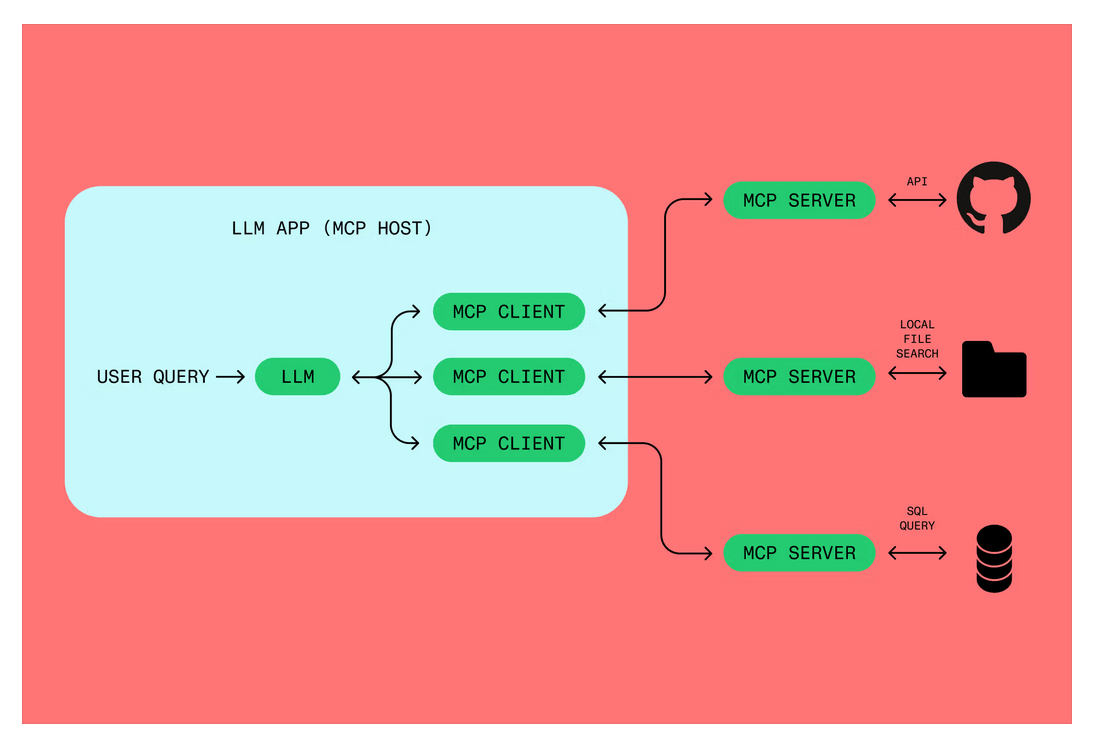
Model Context Protocol (MCP) is an open standard — originally developed by Anthropic — that gives AI clients a structured way to connect to external tools and data sources. Think of it as a universal adapter between your AI client and any system that implements the protocol.

Without MCP, you’re copying content into prompts or writing glue code to call APIs. With MCP, the AI client has a live, authenticated connection to the system and can call tools directly. The protocol handles the session, the tool schema discovery, and the data transport.

MCP is to AI clients what LSP (Language Server Protocol) was to code editors — a standard that removes the N×M integration problem.

Optimizely’s MCP server is hosted by Optimizely at a single URL. You register it once in your AI client and authenticate via OAuth. No self-hosting, no token management.

How MCP works : Source : https://www.figma.com/resource-library/what-is-mcp/

Optimizely SaaS — MCP Server Architecture

What the Optimizely SaaS MCP server can do

Once connected, the MCP server exposes a set of tools prefixed with cms_ and graph_. Here’s what you can actually do from inside your editor:

Use caseExample prompt in your IDE
Content type auditing“What are all the content types updated in the last year?”
Content creation“Create a Hero block content type with these fields…”
Front-end scaffolding“Generate a React component for the BlogPost content type”
Developer onboarding“Complete the initial dev setup for this CMS instance”
Preview configuration“Configure preview for my Next.js app running on localhost:3000”
Content migration“List all content items using the deprecated LegacyHero type”

The server sees exactly what your Opti ID account has access to — same data, same permissions as the Optimizely UI.

Who it’s for

Developers using AI-powered editors

If you’re working in Cursor, Claude Code, VS Code with Copilot, Windsurf, or Codex, the MCP server lets you complete full implementation workflows without leaving your editor. Define a content type, scaffold the React component, and configure preview — all in one agentic session.

Technical marketers and editors in browser-based AI

If you use Claude Desktop, Claude.ai, or ChatGPT, you can query your CMS instance in plain English for reporting and auditing. No developer needed to pull a content inventory or check what’s been updated.

How to set it up (5 minutes)

The MCP server URL is:

https://cms.mcp.opal.optimizely.com/mcp

Prerequisites

  • An Opti ID account (same credentials you use to log into the Optimizely UI)
  • An Optimizely account with Opal enabled, connected to at least one CMS (SaaS) instance
  • An AI client that supports remote MCP (see table below)

Register the server in your AI client

AI ClientHow to add
Claude Code (CLI)claude mcp add --transport http cms https://cms.mcp.opal.optimizely.com/mcp
Claude DesktopSettings → MCP Servers → Add Server
Claude.aiSettings → Integrations → Add MCP Server
CursorSettings → MCP → Add new MCP server
VS Code + CopilotOpen MCP settings in Copilot configuration
WindsurfSettings → MCP Servers, or edit .windsurf/mcp.json
CodexSettings → MCP servers → Add server

Authenticate

On first connection, your AI client opens a browser OAuth flow. You:

  1. Log in with your Opti ID credentials
  2. Select your Opal instance
  3. Authorize the MCP connection

That’s it. No manual API token, no credential files. The session is time-limited — when it expires, your client prompts you to re-authenticate.

Test the connection

Run this query in your AI client:

List all of my content types

You should get a real-data response from your CMS instance. If you see tools prefixed with cms_ or graph_ in your client’s tool list, you’re connected.

Demo: see it in action

The walkthrough below shows connecting the MCP server in Cursor, authenticated with Opti ID, and running a live content type query against a real CMS (SaaS) instance.

If the video hasn’t loaded yet, jump straight to the setup steps above.

Under the hood: how the auth flow works

It’s worth understanding the three-layer identity model:

  1. Opti ID — Optimizely’s unified identity system. Single credentials across all Optimizely products. If you have an Optimizely login, you already have Opti ID.
  2. Opal — Optimizely’s agent orchestration platform. The MCP server authenticates through your Opal instance, which in turn is connected to one or more CMS (SaaS) instances. Selecting your Opal instance during OAuth automatically wires up all the CMS instances linked to it.
  3. MCP session — Once authenticated, your AI client holds a time-limited OAuth token. The MCP server uses this to call Optimizely APIs on your behalf, with exactly the same permissions your account has in the UI.

No service account, no static API key sitting in a .env file. That’s a meaningful security improvement over how most CMS integrations work today.

Using it with the JavaScript SDK Skills

The MCP server is designed to work alongside the Optimizely JS SDK skills — a set of agentic skill definitions for the JS SDK. Together, they unlock a more complete development workflow:

  • MCP server provides live read/write access to your CMS instance
  • SDK skills provide the recipe for common tasks (scaffolding, preview config, content type creation)

For example: you can ask your AI client to “Create a Hero content type and scaffold a React component for it” — the MCP server handles the CMS API calls, the SDK skill handles the component code generation.

Things to be aware of

A few practical notes before you start:

  • Opal must be enabled on your account. The MCP server authenticates through Opal, so if Opal isn’t connected to your CMS instance, the auth flow will fail. Check with your Optimizely account admin.
  • Session expiry — OAuth sessions are time-limited. When your session expires, your AI client will prompt for re-auth. Plan for this in long-running agentic workflows.
  • Permissions are inherited — the MCP server respects your Opti ID RBAC. A read-only editor won’t be able to create content types via MCP even if they try.
  • Remote MCP support varies by client — most modern AI editors support it, but double-check your client version. Older versions of Cursor or VS Code Copilot may need an update.

Why this matters for Optimizely SaaS projects

The MCP server isn’t a gimmick — it directly addresses some of the friction points we see on every Optimizely SaaS implementation:

  • Content type auditing is tedious in the UI. With MCP, it’s a single natural-language query.
  • Front-end scaffolding from content types usually means copying field definitions by hand. Now your AI client can read the content type directly and generate the component.
  • Onboarding new developers takes time because they need to learn the CMS UI to understand the content model. MCP lets them ask the system directly.
  • Migration planning — finding all content using a deprecated type, or auditing what’s changed — becomes a conversation rather than a dashboard report.

Get started

  1. Check that Opal is enabled on your Optimizely account
  2. Open your AI client and register the MCP server: https://cms.mcp.opal.optimizely.com/mcp
  3. Complete the OAuth flow with your Opti ID credentials
  4. Run: “List all of my content types” to verify the connection
  5. Read the official MCP server overview and configuration guide

Resources

Optimizely SaaS Visual Glossary

Recently I came across Optimizely SaaS CMS Glossary: https://docs.developers.optimizely.com/content-management-system/v1.0.0-CMS-SaaS/docs/glossary and I thought it will be good to have a visual Glossary. As my mind absorbs information better with Visual. Yours too? Then this post is for you.

Jump to a category

Core Concepts

The foundational ideas that explain what Optimizely CMS (SaaS) actually is.

CMS

Content Management System

Software that lets people create, edit, organize, and publish digital content without writing code for every page.

📷 Screenshot for: CMS

In practice
A marketing team writes a blog post in a CMS instead of hand-coding HTML and uploading it via FTP.
In Optimizely
The umbrella product — everything else in this glossary lives inside the CMS.

CMS (SaaS)

Optimizely’s cloud-hosted CMS — fully managed, continuously updated, and built on Optimizely Graph + Visual Builder.

📷 Screenshot for: CMS (SaaS)

Credits : https://world.optimizely.com/products/cms/saas/
In practice
You don’t run servers or apply patches — Optimizely ships features and fixes automatically.
In Optimizely
This is the product this glossary documents. Manages multiple sites with shared assets and templates.

SaaS

Software as a Service

A delivery model where you access software over the internet instead of installing and running it yourself.

📷 Screenshot for: SaaS

In practice
Like Gmail or Figma — you log in via a browser; the vendor handles infrastructure.
In Optimizely
The “SaaS” in CMS (SaaS) means no infra to manage and seamless upgrades.

Headless

An architecture where the backend (content) is separated from the frontend (presentation) and exposed via APIs.

📷 Screenshot for: Headless

Credits : https://www.optimizely.com/insights/blog/navigating-cms-architectures/
In practice
The same content powers a website, mobile app, and digital signage — each fetches it via API.
In Optimizely
CMS (SaaS) is headless: content lives in CMS; React/Next.js apps render it via Optimizely Graph.

Visual Builder

A drag-and-drop WYSIWYG editor with real-time preview for composing pages from reusable sections and elements.

📷 Screenshot for: Visual Builder

Credits : https://docs.developers.optimizely.com/content-management-system/v1.0.0-CMS-SaaS/docs/get-started-with-visual-builder
In practice
A marketer assembles a campaign landing page by dragging a hero, two CTAs, and a video — no developer needed.
In Optimizely
The default authoring experience for Experiences (composable pages) in CMS (SaaS).

Optimizely Graph

A GraphQL-powered API for querying and delivering CMS content across platforms via a global CDN.

📷 Screenshot for: Optimizely Graph

In practice
A Next.js site queries only the fields it needs — title, hero image, body — and the CDN serves it in milliseconds worldwide.
In Optimizely
The primary read API for delivering CMS (SaaS) content to any frontend.

Content Model

How content is structured, typed, and described inside the CMS.

Content Modeling

Defining the types of content and how they relate — pages, blocks, fields, references.

📷 Screenshot for: Content Modeling

In practice
Deciding that an “Article” has a title, author, body, and hero image — and that authors are their own content type.
In Optimizely
Done via the UI or REST API; the model integrates directly with Optimizely Graph.

Content Type

A reusable definition (Experience, Section, Element, Page, Shared Block, Media) with its own set of fields.

📷 Screenshot for: Content Type

In practice
“Press Release” is a content type with a date, headline, and body — every press release uses the same shape.
In Optimizely
Defined via the UI or REST API under Settings → Content types.

Base Type

A parent template that dictates shared properties and behaviors inherited by specific content types.

📷 Screenshot for: Base Type

Credits : https://docs.developers.optimizely.com/content-management-system/v1.0.0-CMS-SaaS/docs/content-base-types-saas
In practice
Like a class in OOP — every “Page” inherits common fields (URL slug, SEO metadata) from the Page base type.
In Optimizely
Ensures consistency in settings and templates across many content types.

Page Type

A content type used to build pages — defines the title, main body, and other properties content editors fill in.

📷 Screenshot for: Page Type

In practice
A “Product Page” page type ensures every product detail page on your site has the same structure.
In Optimizely
Selected when a content editor clicks Create → Page.

Block Type

A reusable component definition (banner, video, contact form) with properties and an editing UI — no URL of its own.

📷 Screenshot for: Block Type

In practice
“Hero Banner” block type has fields for headline, subtitle, image, and CTA — used across many pages.
In Optimizely
Block types power both Shared Blocks and Inline Blocks.

Component

A generic content type used as a field on other content — or as a standalone instance — that supports multiple locales.

📷 Screenshot for: Component

In practice
An “Author Bio” component is attached to many Articles, but can also stand alone.
In Optimizely
Toggle “Available for composition in Visual Builder” to use it inside sections/elements.

Properties

The individual fields that make up a content type — text, image, link, date, number, choice, etc.

📷 Screenshot for: Properties

In practice
An Article’s properties are title (Text), hero (Image), publishDate (DateTime), and tags (Choice).
In Optimizely
The building blocks of every content type. Defined in Settings or via REST API.

Metadata

Information about information — meta descriptions for SEO, alt text on images, file size on a PDF.

📷 Screenshot for: Metadata — click below to upload

In practice
The meta description that appears under a page title in Google search results.
In Optimizely
Used for SEO, Optimizely Graph queries, and asset descriptions.

Globalization

Managing content in multiple languages and localizing the user interface.

📷 Screenshot for: Globalization

In practice
Your homepage exists in English, German, and Japanese — all variants are linked but independently editable.
In Optimizely
Configured via Settings → Languages; each piece of content has language branches.

Master Language

The language a piece of content is first created in — the source for all translations.

📷 Screenshot for: Master Language

In practice
If English is your master language, German and French translations branch off from the English version.
In Optimizely
Set per application; controls fallback behavior when a translation is missing.

Visual Builder

The composable page-building system at the heart of CMS (SaaS).

Experience

A flexible, composable web or app page made of sections and elements — built in Visual Builder.

📷 Screenshot for: Experience

In practice
A holiday campaign landing page assembled from hero + 3 features + testimonial sections.
In Optimizely
Gives developers access to the layout system and the UnstructuredData array.

Section

A horizontal slice of a page — a row/column grid of elements. Save it as a blueprint to reuse it.

📷 Screenshot for: Section — click below to upload

In practice
A “Three Feature Cards” section that appears on the homepage and three product pages.
In Optimizely
The middle layer between an Experience (whole page) and an Element (single component).

Elements

Reusable design components — banners, CTAs, buttons — with adjustable fonts, colors, and layout, plus locked brand rules.

📷 Screenshot for: Elements

In practice
A “Primary CTA Button” element you drop into any section; brand colors are locked, copy is editable.
In Optimizely
The smallest unit in Visual Builder — sits inside Sections.

Blueprint

A reusable Visual Builder layout template content managers can create directly in the UI from sections or whole experiences.

📷 Screenshot for: Blueprint

In practice
Save a polished “Product Launch” page as a blueprint — next launch, start from it instead of a blank canvas.
In Optimizely
Saved via the “Save as blueprint” action.

Outline

A list view of the sections on a page — drag to reorder, click to jump to the section in the preview.

📷 Screenshot for: Outline

In practice
On a 12-section landing page, the outline lets you reorder “Pricing” above “Features” in two clicks.
In Optimizely
A panel in the Visual Builder UI alongside the live preview.

Style

Pre-approved visual settings (typography, color, spacing) that can be applied at any level — row, column, section, or experience.

📷 Screenshot for: Style

In practice
Apply “Dark Mode” style to a section and every element inside it follows the dark palette.
In Optimizely
Defined by developers; chosen by editors from the Styles panel.

Interactive Preview

Live previews on desktop, tablet, and mobile — test interactions before publishing with instant visual feedback.

📷 Screenshot for: Interactive Preview

In practice
Click a mobile breakpoint to confirm a CTA still works on a 375px screen before going live.
In Optimizely
Built into the Visual Builder editing experience.

Content & Assets

The actual stuff editors create, upload, and arrange — and the containers that hold it.

Asset

Reusable content like documents, videos, and images that can be linked to pages and shared blocks.

📷 Screenshot for: Asset

In practice
A “Brand Logo.png” lives once in DAM and is referenced from every page that uses it.
In Optimizely
Managed in the DAM (Digital Asset Management) system.

Assets Panel

A customizable side panel where you drag assets, shared blocks, files, or products into a page.

📷 Screenshot for: Assets Panel

In practice
Drag the “Q4 Promo Banner” shared block from the panel into the homepage’s hero slot.
In Optimizely
The right-hand drawer in the editing UI.

Block

A reusable chunk of content — either a Shared Block (stored separately, reusable) or an Inline Block (lives inside a page).

📷 Screenshot for: Block

In practice
“Newsletter Signup” can be a shared block used everywhere, or an inline block specific to one campaign.
In Optimizely
See the dedicated Shared Block and Inline Block cards below.

Shared Block

Reusable content (banner, video, page listing) that can be inserted into many pages — edits propagate everywhere.

📷 Screenshot for: Shared Block — click below to upload

In practice
Update one “Holiday Promo” shared block and all 12 product pages using it refresh instantly.
In Optimizely
Created from a block type; lives in the assets pane and is reusable across applications.

Inline Block

A block stored inside the page where it was created — not reusable, doesn’t appear in the assets pane.

📷 Screenshot for: Inline Block

In practice
A one-off testimonial that only lives on a single case study page.
In Optimizely
No separate publish step — saving the parent page saves the inline block.

Content Area

A container that holds a collection of items (shared blocks, pages) — editors manage order, grouping, and display.

📷 Screenshot for: Content Area — click below to upload

In practice
A “Related Articles” content area on a blog post lets the editor curate three related posts.
In Optimizely
A property type on a content type; flexible and editor-friendly.

Media

Files such as images, PDFs, Word documents, videos, or audio.

📷 Screenshot for: Media

In practice
A hero image, a downloadable spec sheet PDF, or an MP4 product demo.
In Optimizely
Managed in DAM; backed by a BLOB provider for cost-efficient storage.

BLOB

Binary Large Object

A storage framework optimized for large binary data — cloud-based instead of in a database.

📷 Screenshot for: BLOB

In practice
A 200MB video file lives in cloud blob storage, not in the SQL database that holds page metadata.
In Optimizely
Powers the asset system in CMS (SaaS) — keeps storage cheap and queries fast.

Autosave

Saves your work automatically (every minute by default) so a crash doesn’t lose your edits.

📷 Screenshot for: Autosave

In practice
Your browser tab crashes after 40 minutes of writing — your draft is still there when you reopen.
In Optimizely
Interval can be tuned per organization.

Rich-Text Editor

A WYSIWYG editor for formatting web content — bold, italic, lists, links, images.

📷 Screenshot for: Rich-Text Editor — click below to upload

In practice
Same experience as writing in Google Docs — but the output is structured HTML.
In Optimizely
Powered by TinyMCE; used for body fields on most page and block types.

People & Permissions

Who uses the CMS, and what each role is allowed to do.

User

Anyone who logs into the CMS to manage content — admins, editors, marketers, merchandisers.

📷 Screenshot for: User

In practice
Your team — content creators, approvers, and developers — each with different permissions.
In Optimizely
Managed via Opti ID and access rights.

Visitor

Someone browsing your site in a web browser — can use public functions but can’t create content.

📷 Screenshot for: Visitor — click below to upload

In practice
The customer reading your blog post or filling out a contact form.
In Optimizely
Has limited access — bounded by visitor-facing access rights.

Developer

The person who writes code to implement features — content types, integrations, custom rendering.

📷 Screenshot for: Developer

Credits : https://niteco.com/articles/optimizely-launches-saas-cms-with-a-brand-new-architecture/
In practice
Builds the Next.js frontend that consumes Optimizely Graph and renders the site.
In Optimizely
Works in the REST API, JavaScript SDK, and content type definitions.

Occasional Editor

Someone who edits content infrequently — typically without permission to publish.

📷 Screenshot for: Occasional Editor

In practice
A subject-matter expert who updates one page a quarter and submits for approval.
In Optimizely
Often configured with Create/Change rights but not Publish.

Access Rights

Controls who can do what — Read, Create, Change, Delete, Publish, Administer.

📷 Screenshot for: Access Rights

In practice
Marketing can publish blog posts, but only Admins can change site-wide settings.
In Optimizely
Set per user/group on any node in the content tree.

ACL

Access Control List

The underlying permission list — who is allowed to read, change, or publish a node in the content tree.

📷 Screenshot for: ACL

In practice
Restrict an entire “HR” subtree so only HR users can see or edit its pages.
In Optimizely
The mechanism behind Access Rights.

Approval Sequence

A defined workflow of reviewers needed to approve content or settings changes before they go live.

📷 Screenshot for: Approval Sequence

In practice
Editor → Legal Review → Brand Approver → Published. Each step requires sign-off.
In Optimizely
Configured in Settings; applies to content, access rights, language changes, etc.

Platform & Admin

Environments, settings, and the surfaces admins live in.

Application

A distinct project or website inside the same CMS environment — its own URLs, languages, and shared content rules.

📷 Screenshot for: Application

In practice
One CMS instance powers acme.com, acme.de, and acme-careers.com — three Applications, shared assets.
In Optimizely
Managed in Settings → Applications.

Instance

An individual environment of CMS (SaaS). You get three — typically dev / staging / production.

📷 Screenshot for: Instance

In practice
Test a new content model on staging; once verified, promote to production.
In Optimizely
Configured under Configure environments.

Environment

Synonym for instance — an individual installation of CMS (SaaS).

📷 Screenshot for: Environment

In practice
“Promote this content from the staging environment to production.”
In Optimizely
Used interchangeably with “instance” in the docs.

Administrator Page

Where admins manage access rights, languages, scheduled jobs, imports/exports, and multi-site configuration.

📷 Screenshot for: Administrator Page — click below to upload

In practice
Adding a new language to your site or creating an API key for a partner.
In Optimizely
Accessible from the Settings area.

Dashboard

An overview page where content managers add gadgets and monitor activity.

📷 Screenshot for: Dashboard

In practice
“Tasks assigned to me”, “Recent edits”, and “Scheduled publishes” all on one screen.
In Optimizely
The landing screen when you log in.

Gadget

A small UI component you can place on the dashboard or in side panels.

📷 Screenshot for: Gadget

In practice
A “Recent Comments” gadget shows new collaboration comments without leaving the dashboard.
In Optimizely
Each handles its own rendering and behavior.

Navigation Panel

The left-side panel showing the page tree, language branches, tasks, and project items.

📷 Screenshot for: Navigation Panel — click below to upload

In practice
How you navigate from the homepage down to a specific blog post inside a 500-page site.
In Optimizely
Always present in the CMS editing UI.

Global Navigation Bar

The top bar in the UI — switch between Optimizely products and access user controls.

📷 Screenshot for: Global Navigation Bar

In practice
Jump from CMS to ODP, Web Experimentation, or Configured Commerce without re-logging in.
In Optimizely
The uppermost element on every CMS screen.

URLs & Navigation

How visitors and editors find their way around.

URL

Uniform Resource Locator

A web address — like https://world.optimizely.com.

📷 Screenshot for: URL

In practice
What you paste in a browser or share in a tweet.
In Optimizely
Every Page has one; Blocks don’t.

SEO URL

A simple, readable web address that can replace the hierarchical URL when links are rendered.

📷 Screenshot for: SEO URL

In practice
/winter-sale instead of /en/marketing/campaigns/winter/2026-sale.
In Optimizely
The site responds to both — SEO URL is just the friendly alias.

A link from one page of your site to another page on the same site.

📷 Screenshot for: Internal Link

In practice
A blog post linking to the product page it’s about — keeps users on your domain.
In Optimizely
Resolved automatically; updates if the target page moves.

A link to a page on a different domain — usually opens in a new tab.

📷 Screenshot for: External Link — click below to upload

In practice
A link from your blog post to a research paper hosted on another site.
In Optimizely
Editors choose internal vs. external in the link picker.

Landing Page

A standalone page visitors “land” on after clicking a banner or ad — usually built to drive one specific action.

📷 Screenshot for: Landing Page

In practice
A “Sign up for our webinar” page with a single big CTA and no nav distractions.
In Optimizely
Commonly built as a Visual Builder Experience from a campaign blueprint.

Breadcrumb

The clickable path to the current page (Home › Blog › 2026 › This Post) — backtrack with one click.

📷 Screenshot for: Breadcrumb — click below to upload

Credits : https://www.justinmind.com/ui-design/breadcrumb-website-examples
In practice
Helps visitors understand where they are and helps editors navigate the page tree.
In Optimizely
Appears in both the visitor-facing site and the editing UI.

Root

The single top-level parent of the entire content tree.

📷 Screenshot for: Root — click below to upload

In practice
“All content” — every page, block, and asset descends from here.
In Optimizely
Found at the top of the navigation panel.

PDP

Product Display Page

A commerce page that displays a product for sale.

📷 Screenshot for: PDP — click below to upload

Credits : https://www.plytix.com/blog/ecommerce-pdp
In practice
An Amazon-style page with photos, price, description, reviews, and Add to Cart.
In Optimizely
Often built as an Experience and integrated with Configured Commerce.

Search & SEO

How content gets found — by visitors and by search engines.

Developer & Technical

APIs, data formats, and the technical scaffolding underneath.

API

Application Programming Interface

A contract that lets software components talk to each other — read data, trigger actions, integrate systems.

📷 Screenshot for: API

Credits : https://world.optimizely.com/blogs/szymon-uryga/dates/2023/11/optimizely-graph-and-next-js-building-scalable-headless-solutions/
In practice
A mobile app calls the CMS API to fetch the latest articles for its feed.
In Optimizely
CMS (SaaS) exposes REST and GraphQL APIs.

REST API

A web API for managing CMS configuration — content types, properties, and resources — over HTTP.

📷 Screenshot for: REST API

Credits : https://docs.developers.optimizely.com/content-management-system/v1.0.0-CMS-SaaS/reference/introduction-to-the-cms-content-api
In practice
A CI pipeline POSTs content type updates to staging on every merge.
In Optimizely
The main programmatic surface for developers; ideal for iterative workflows.

Operation

A single API call — the combination of an HTTP method and an endpoint, e.g. GET /changesets.

📷 Screenshot for: Operation

Credits : https://docs.developers.optimizely.com/content-management-system/v1.0.0-CMS-SaaS/reference/introduction-to-the-cms-content-api
In practice
Each endpoint in the API reference is one operation you can call.
In Optimizely
Documented in the CMS (SaaS) REST API reference.

JSON

JavaScript Object Notation

A lightweight text format for exchanging data — readable by humans and easy for machines to parse.

📷 Screenshot for: JSON

Credits : https://docs.developers.optimizely.com/content-management-system/v1.0.0-CMS-SaaS/reference/introduction-to-the-cms-content-api
In practice
What API responses look like: {"title": "Hello", "draft": false}.
In Optimizely
The default format for REST API requests and responses.

XML

Extensible Markup Language

A structured text format using tags — older and more verbose than JSON, but still common in enterprise integrations.

📷 Screenshot for: XML

Credits : https://www.logicbig.com/tutorials/misc/xml/xml-basics.html
In practice
SOAP integrations, sitemaps, RSS feeds, and config files.
In Optimizely
Used in some legacy export/import formats and feed integrations.

Webhook

A reverse API — when something happens, the CMS pings your URL with event data in real time.

📷 Screenshot for: Webhook

Credits : https://snipcart.com/blog/what-are-webhooks-explained-example
In practice
“Page published” → CMS POSTs to your build server → site rebuilds automatically.
In Optimizely
Used to trigger downstream systems on content events and to collect form data.

GUID

Globally Unique Identifier

A long, statistically-unique ID like f47ac10b-58cc-4372-a567-0e02b2c3d479.

📷 Screenshot for: GUID

In practice
Every piece of content has one — stable even if the title or URL changes.
In Optimizely
Used internally and in API responses to identify content unambiguously.

CSS

Cascading Style Sheets

The language that controls visual appearance — fonts, colors, layout — separately from content.

📷 Screenshot for: CSS

Credits : https://medium.com/@mackenzeeblood01/getting-started-c-s-s-basics-f0eafe1975f0
In practice
One CSS file change repaints your entire site in new brand colors.
In Optimizely
Used in the frontend; Visual Builder Styles are a CSS-driven layer.

WYSIWYG

What You See Is What You Get

Editing where the on-screen view matches the published output.

📷 Screenshot for: WYSIWYG

In practice
Make a heading bold in the editor and it looks bold immediately — no preview needed.
In Optimizely
Visual Builder is the WYSIWYG editor for composing pages.

Compliance & Misc

Terms that don’t fit a single bucket but are still part of the vocabulary.

GDPR

General Data Protection Regulation

European data protection law governing how personal data is collected, stored, and processed.

📷 Screenshot for: GDPR

Credits : https://www.hipaaguide.net/gdpr-for-dummies/
In practice
Cookie consent banners, the right to be forgotten, and explicit opt-in for marketing emails.
In Optimizely
Optimizely publishes GDPR guidelines for CMS implementations.

Source: All definitions are based on the official Optimizely CMS (SaaS) glossary. Use cases and visual treatments are added for clarity.

Optimizely Opal Basics

A couple of weeks ago I had the chance to spend a day at the Optimizely Opal Partner Enablement Workshop hosted at the Horizontal Minneapolis office. It was a hands-on session focused on getting partners up to speed on Opal — Optimizely’s AI orchestration layer — and walking through the building blocks you actually compose when you build an Opal agent.

This post is my attempt to distill the basics into something I can come back to (and that maybe helps you, too, if you’re just starting out). If you want the marketing-level pitch first, the official landing page is here:https://www.optimizely.com/ai

At its core, Opal is built on four primitives: Instructions, Tools, Specialized Agents, and Workflows. Once those four clicked for me, everything else in the platform started to feel a lot less mysterious. Let’s walk through each one.

Instructions [Recently updated to Context]

Short explanation: Instructions are the natural-language guardrails that shape how an Opal agent thinks and responds. They are the agent’s job description — its role, its tone of voice, what it should and shouldn’t do, how it should handle edge cases. If you have ever written a “system prompt” for an LLM, you already know the shape of this. The difference in Opal is that instructions become a reusable, versioned asset that any agent or workflow can pull in.

One example: A “Brand Voice” instruction set that tells the agent to write in second person, keep sentences under 20 words, avoid corporate jargon, and always end on a clear call to action. Drop those instructions into a content-writing agent and every draft it produces starts from the same baseline — no more re-explaining the brief.

Opal team has provided multiple examples here, repo link: https://github.com/optimizely/opal-agent-examples/tree/main/instructions

You can add Personal or Organization level skills
This is a Create Skill UI – I believe all fields are self explanatory and contextual help is also available

Tools

Short explanation: Tools are the things an Opal agent can actually do in the outside world. A tool is a callable function — usually exposed over an API — that the agent can invoke when it decides it needs to fetch data, take an action, or hand work off to another system. Without tools, an agent is a very articulate text generator. With tools, it becomes something that can publish a page, run a query, or trigger an experiment.

One example: A simple get_cms_content tool that takes a content ID and returns the latest draft from Optimizely CMS. The agent doesn’t need to know how the CMS works — it just needs to know that this tool exists, what it accepts, and what it returns. That separation between “reasoning” (the agent) and “doing” (the tool) is what makes the model practical to build on.

You can write these tools in either of these languages:

  1. C# .NET
  2. Python
  3. Typescript

Following repos can help you get started :

Here’s how it looks:

Specialized Agents

Short explanation: A Specialized Agent is what you get when you combine a focused set of instructions with a curated set of tools and aim it at one specific job. Instead of a single do-everything assistant, you build narrow agents that are very good at one thing — SEO review, A/B test ideation, product copywriting, content tagging — and then compose them. Narrow agents are easier to reason about, easier to test, and easier to trust in production.

One example: An “SEO Reviewer” agent whose only job is to read a draft article and return three things — a recommended meta title, a meta description under 155 characters, and a list of missing keywords based on the target topic. It has instructions about how to think like an SEO analyst, and a small tool for pulling keyword data. That’s it. No content generation, no publishing — just review.

Multiple examples are available here : https://github.com/optimizely/opal-agent-examples/tree/main/specialized-agents

Workflows

Short explanation: Workflows are how you stitch the pieces together. A workflow chains agents, tools, and decisions into a multi-step process — pass the output of one agent into the next, branch based on a result, loop until a condition is met. This is where Opal stops feeling like “a chatbot with extras” and starts feeling like an orchestration platform. The agents stay small and focused; the workflow is where the choreography lives.

One example: A “Blog Post Pipeline” workflow that takes a topic brief, hands it to a Writer agent, passes the draft to the SEO Reviewer agent above, calls a CMS tool to create a draft entry, and then notifies the editor in Slack. Each step is independently swappable — you can upgrade the writer, replace the SEO reviewer, or change where the final draft lands without rewriting the whole thing.

Repo link: https://github.com/optimizely/opal-agent-examples/tree/main/specialized-agents (workflow patterns live alongside the agent examples in the same repo)

My Final Example

To put all four primitives in one place, here is the small example I’ve been sketching out since the workshop — a “Web Accessibility Validator Agent which sends report via email”:

It’s a small example on purpose. Once those four primitives clicked, the temptation was to design something enormous on day one — but the thing the workshop kept pushing was to start narrow, get one workflow working end-to-end, and then grow from there.

Wrapping up

If you remember nothing else from this post, remember this: Instructions/Context shape behavior, Tools enable action, Specialized Agents combine the two for a specific job, and Workflows orchestrate the whole thing. Almost everything you’ll build on Opal is some arrangement of those four pieces.

Huge thanks to the Optimizely and Horizontal teams who put the Minneapolis partner enablement workshop together.

AI

AI Won’t Take Your Job — But Someone Using AI Might

On my way home from the airport recently, my Uber driver started asking me about AI. He wasn’t asking for himself — he has kids heading to college and he’s genuinely worried about what the world looks like for them by the time they graduate.

I get it. Students come to me with the same anxiety all the time: “Is AI going to take my job? Is a development career even worth starting anymore?”

Honestly? The experts don’t have a clean answer either. A recent LinkedIn News story put it well — “Will AI take your job? It’s complicated.” And if experts with all the data are saying it’s complicated, maybe we should stop expecting a simple yes or no.

But I’ve been in the trenches. I’ve been vibe coding real applications with AI. I’ve seen it work brilliantly and I’ve seen it fail completely. So here’s my take — not from a report, but from actually building things.

First, Let’s Take a Step Back

Before we get into AI, I want to zoom out. Because we’ve been here before.

The Paper Era — Information lived on paper. People wrote by hand, organized filing cabinets, analyzed things manually. That was the job.

The Computer Era — Computers arrived and critics feared mass unemployment. Instead? Entirely new industries appeared. More jobs, not fewer.

The Internet Era — Computers + Internet turned the world into a global village. Information was democratized. Anyone with a connection could access what once lived only in expensive libraries. E-commerce, remote work, the gig economy — none of it existed before this wave. And again, the economy grew.

Here’s the pattern every time: technology automated the repetitive, and humans moved up. The tools changed. The need for human intelligence didn’t.

I believe that’s exactly what’s going to happen with AI.

What I Actually Learned from Vibe Coding

I recently built a couple of applications using AI — just describing what I wanted and letting AI write most of the code. Here’s my honest experience:

When it worked brilliantly

I had a list of prototype apps I’d been meaning to build for months. The usual developer problem — you know what you need to build, but there’s so much boilerplate involved that you never actually start. (Every developer reading this has bought a domain for a project they never shipped. You know who you are. 😄)

With AI, I shipped those prototypes in 1–4 hours each. Without AI, double the time — and honestly, I probably would have never started.

AI didn’t just speed me up. It unlocked projects I’d been sitting on forever.

When it struggled

I tried to vibe code a module inside a CMS using an SDK I wasn’t familiar with — not my primary stack, not a standalone app. It went sideways. The AI kept generating plausible-looking code that didn’t actually work in that specific context.

The lesson? AI amplifies your existing knowledge. It’s a force multiplier, not a replacement. When I paused, spent time understanding the basics of that SDK myself, and then brought AI back in — it worked out really well and saved significant time.

You still need to know how to fly. AI is a great co-pilot, not the captain.

The “AI Theater” Problem — And Why It Matters for You

Here’s something worth knowing: a McKinsey survey of 1,400 executives found that 90% of companies claim they’re “using AI” — but only 23% have actually scaled it to create real business value. Blake Crosley wrote a brilliant piece calling this “AI Theater” — organizations that invest visibly in AI through announcements, pilots, and hiring without actually creating measurable outcomes.

Why does this matter for your career? Because the companies that are genuinely using AI well are pulling ahead — and they need people who can tell the difference between AI theater and AI that actually works. That judgment is human. That skill is yours to develop.

Knowing how to actually use AI to ship real things, not just demo impressive prototypes, is going to be one of the most valuable skills of this decade.

So Will AI Take Your Job?

Here’s my honest answer: it depends on what your job actually is.

A recent CNN Business report put it well — AI is automating parts of jobs, not entire jobs. McKinsey estimates AI is technically capable of automating 57% of work-related activities. But “technically capable” and “actually replacing your role” are very different things.

Companies are using AI to automate certain parts of jobs rather than replace entire positions — business leaders are figuring out what AI can and can’t do, and recalibrating jobs around responsibilities that only humans can do.

If your job is purely repetitive — following a script, copying data, generating the same output with no real judgment — yes, AI can and probably will do that.

But if you learn how to use AI, keep growing your expertise, and keep your brain in the game? Your job isn’t going away. It’s evolving.

And here’s the good news LinkedIn’s data actually backs this up: AI has already created over 1.3 million new roles — AI Engineers, Forward-Deployed Engineers, Data Annotators — and AI Engineer is one of the fastest-growing job titles on LinkedIn over the past three years.

The wave creates jobs. It always has.

What Your Clients Will Expect — And Why You’re Still Needed

Future client expectations are going to shift — and this is important. Every client will still need developers, consultants, agencies, and builders to create their apps, software, and websites. That part isn’t changing.

What is changing is their benchmark. They’ve seen what AI can do. They’ll expect faster delivery and more cost-effective solutions. The developer who can use AI to deliver better quality faster is the one who wins that client.

Think of it this way: a few years ago, knowing a framework like React was a differentiator. Soon, knowing how to build effectively with AI will be the differentiator. Get there first.

The Real Question: What Are You Doing Today?

Nobody — and I genuinely mean nobody — knows what the world looks like in 10 years. Not the analysts, not the CEOs, not the people building these models. Stop worrying about a future no one can predict with certainty.

Economists, professors, and advisers discussing AI’s impact on jobs all say things are uncertain — there is no clear answer. If that’s the expert consensus, maybe the energy is better spent on what you can control.

What you can do right now:

Audit your daily tasks. Which ones are repetitive and mechanical? That’s where AI can take load off your plate — so you can focus on the work that actually needs your brain.

Start experimenting. You don’t learn AI by reading about it. Build something. Even something small. Fail at it like I did with that SDK. Learn, then try again.

Keep your fundamentals sharp. AI amplifies knowledge. The more you genuinely understand your craft, the more powerful your prompts, your judgment, and your output become. The people struggling with AI-assisted coding are often the ones who skipped the fundamentals.

The need of the hour is simple: adopt and adapt.

One Thing I’m Keeping an Eye On

All of this assumes AI stays accessible — and right now, AI tokens are a new kind of fuel. Running large models is expensive, and that cost gets passed on.

I’m confident this will change. New chips, more efficient models, better infrastructure — the economics of AI will shift, just like they did for cloud computing, for storage, for bandwidth. There’s even a real possibility we’ll be running capable models locally on our own laptops someday. That would be a game changer for access and cost.

But even today, the direction is clear and the momentum is real.

The Optimistic Take

To the Uber driver’s kids. To the students asking me if development is a dead-end career. To anyone anxious about where this is all going:

The computer didn’t end careers. The Internet didn’t end careers. AI won’t end yours either — if you’re willing to learn alongside it.

The World Economic Forum projects that while AI and automation may displace some jobs, it’s also expected to create millions of new positions — pointing to a shift in the division of labor rather than outright elimination.

Every technological wave rewards the people who ride it early. The ones who lean in, stay curious, and keep building.

The future belongs to the humans who know how to work with AI. Not the ones waiting to see if it goes away.

It’s not going away. And honestly? That’s great news.

What’s your experience with AI in your own work? I’d love to hear — drop a comment below!

References:

A tale of a crashing web app and failing crash dump collection tools

Recently, I got involved in a production web app troubleshooting, where Web Application was crashing ~70+ times a day due to Stackoverflow exception. But we haven’t been able to capture the crash dump for ~30+ days. Whenever we configure the Crash dump capturing the application won’t crash at all!

Sounds interesting?! It is a really interesting problem and we had our engineering team, Microsoft support team (They even involved top folks in troubleshooting), and Sitecore support Team (Application was built on Sitecore WCMS Platform)

Finally, We’ve been able to resolve this issue. But it took numerous amount of time and that’s why would like to share it with you as well. As when we were searching on this topic. We were unable to find anything. Excited to learn more about this? We are also excited to share with you. Let’s delve into this!

High level Application Architecture

  • Built on Sitecore 9.3 WCMS platform
  • .NET 4.7.2
  • Hosted on Azure Web App (PaaS)
  • P2V2 * 4 (Scaled to 4 instances)
  • Multisite solution using Sitecore hosting 12 websites
  • Serving ~6 M Req/Day

What we’ve been observing?

Azure Web App does a good job of reporting application crashes. You can locate it from Web App | Diagnose and Solve Problems| Type “Application Crashes”

As it is a scaled application, If you want to know which Web App Crashed at a given time. Then you can go to Web App Restarted Option and try to map it with Crashes timeline.

Troubleshooting Journey

To troubleshoot Crash behavior we started our troubleshooting process, we checked:

  • Sitecore Log files – As it was Application Crash, nothing useful found
  • Application Insights – Nothing useful found
  • CPU/Memory usage of Sitecore Application/SQL/Solr – Everything was normal
  • This issue had co-relation with latest release (Crashes started after latest sprint release). So, we checked all deployed code/configuration during that release and also tried disabling few global changes we had in release. But with no luck so far 🙁
  • Any Infrastucture level – Nothing
  • We also launched two new sites on the platform. So, we also checked Total number of requests count increase and it was negligible increase – To remove possiblity we also scaled application from 4 to 6. But that also didn’t help
  • We raised high priority ticket with Sitecore support. But they said, we need “Crash dump” to analyze this issue.
  • We checked Azure Diagnose and solve problems and found following information from Proactive Crash Monitoring analysis:
Thread 12132
ExitCode 800703E9
ExitCodeString COR_E_STACKOVERFLOW
Managed Exception = System.StackOverflowException:
CallStack - Managed Exception
========================================================
CallStack - Crashing Thread
========================================================
     FaultingExceptionFrame
     PrestubMethodFrame
     Microsoft.AspNet.Identity.Owin.IdentityFactoryMiddleware`2+<Invoke>d__0[[System.__Canon, mscorlib],[System.__Canon, mscorlib]].MoveNext()
     HelperMethodFrame
     System.Runtime.ExceptionServices.ExceptionDispatchInfo.Throw()
     System.Runtime.CompilerServices.TaskAwaiter.HandleNonSuccessAndDebuggerNotification(System.Threading.Tasks.Task)
     Microsoft.AspNet.Identity.Owin.IdentityFactoryMiddleware`2+<Invoke>d__0[[System.__Canon, mscorlib],[System.__Canon, mscorlib]].MoveNext()
     System.Threading.ExecutionContext.RunInternal(System.Threading.ExecutionContext, System.Threading.ContextCallback, System.Object, Boolean)
     System.Threading.ExecutionContext.Run(System.Threading.ExecutionContext, System.Threading.ContextCallback, System.Object, Boolean)
     System.Runtime.CompilerServices.AsyncMethodBuilderCore+MoveNextRunner.Run()
     System.Threading.Tasks.AwaitTaskContinuation.RunCallback(System.Threading.ContextCallback, System.Object, System.Threading.Tasks.Task ByRef)
     System.Threading.Tasks.Task.FinishContinuations()

But this information was not enough to reach a root cause, as it just shows System OWIN related classes. But doesn’t provide any custom implementation-related information and Proactive Crash monitoring automatically deleted raw dump files. As per: https://azure.github.io/AppService/2021/03/01/Proactive-Crash-Monitoring-in-Azure-App-Service.html

Also, Proactive crash monitoring was triggered only once and it was never triggered after that.

Then we configured Crash Monitoring and monitored for 4-5 days. But the interesting thing was the application won’t crash till we had Crash monitoring enabled. As soon as we disable the Crash Monitoring application will start crashing again 🙁

We configured the Dummy Stackoverflow exception scenario using ASPX Page and tried to use Crash Monitoring to capture it. But that also didn’t work for our application. If we try the same on Plain ASP.NET or Sitecore application it was working fine 🙂

We noticed that wherever Crash monitoring was working application was deployed on D: and for not working it was on C: and when we check KUDU Console “w3wp.exe -> CrashMon.exe -> dbghost.exe” hierarchy was missing. MSFT support initially thought this could be the issue. But then later Azure Product Group confirmed that’s not the issue.

MSFT support asked us to check our application configuration and we couldn’t find anything. Now, we were in a Catch 22 situation where we can’t do anything without a Crash dump and so far we were unable to capture a crash dump. Our full focus shifted to figure out how we can capture crash dump. Here’s a quick recap of what all we tried during that process:

As you can see no results thus far and we’ve been losing our patience. So, we thought to take a step back and started looking in other directions:

  • To reduce impact of Crashing app we configured App Service Warm-up (This was in our backlog already) this will make sure that app is not back in rotation for end users till app has been successfully warmed up. This really helped us to reduce overall outages which had major impact for end users : https://michaelcandido.com/app-service-warm-up-demystified/
  • We also configured Custom error page using Cloudflare DNS Custom error pages

The above two steps helped us calm down the client a little bit and we could focus on our troubleshooting parallelly.

  • We had Dynatrace OneAgent configured since long time and we thought to remove it : https://www.dynatrace.com/support/help/setup-and-configuration/setup-on-cloud-platforms/microsoft-azure-services/integrate-oneagent-on-azure-app-service/
  • We had VNET enabled to access on premises API, Enabled Crash monitorig and tried capturing crash dump using Dummy Error page and it worked!
  • Above step gave us a hint that this issue is related to VNET Configuration. So, for testing purpose we create new storage account in East US2 and configured Crash monitoring to work with that and it worked!
  • We tried above step at UAT application level. To make any VNET configuration on PROD we need to take downtime. So, we thought to configure Crash Monioring with East US 2 storage account and that worked!
  • We also got this URL from MSFT support to verify your Crash monitoring can connect to Your Storage account or not : https://YOURAPPNAME.scm.azurewebsites.net/daas/api/settings/validatesasuri
  • Another way to identify whether your Crash monioring is working or not is check KUDU Console “w3wp.exe -> CrashMon.exe -> dbghost.exe” If you don’t see dbghost.exe then your Crash Monitoring has not been successfully configured
  • From dump we identified issue and fixed it!
  • Later we worked with client teams to removed the storage endpoint from the integration subnet and it started working for East US storage as well!

In Summary,

  • If you have any extensions installed at Web App level e.g. Dynatrace try removing it
  • If you have any VNET configurations try disabling it
  • This is how Crash Monitoring works
    • Crash Monitoring tries to connect to your storage account using SAS token (Accessible from App Configurations) first. If it can’t connect, it won’t show you that it failed at UI Level (MSFT Please change this) only MSFT Support can help you check that using admin panel
    • To verify that you can use tricks given above
    • Once storage account is accessible it connects either DebugDiag or Procdump (Based WEBSITE_CRASHMONITORING_USE_DEBUGDIAG flag)
    • You can verify it from KUDU Console
  • Most Important thing : Whenever you have such issues – Rember one thing – “Never lose hope!”

Thought to craft small Crash dump tool Marix – Small gift from me for you!

ProcDumpProcDumpHelperCrash DiagnoserProactive Crash MonitoringCrash Monitoring
NoteOOTB available on Azure Web App : c:\devtools\sysinternals\
* Version might not be the latest
Community ExtensionCommunity ExtensionOOTB is available as part of the Azure Web App. Auto attachedOOTB is available. But you have to enable it
ParametersRefer docRefer docRefer docWEBSITE_PROACTIVE_CRASHMONITORING_ENABLEDWEBSITE_CRASHMONITORING_USE_DEBUGDIAG (True/False)

WEBSITE_DAAS_STORAGE_SASURI
Behind the scenes which tool it uses?ProcDumpProcDumpProcDumpCrashMon.exe, procdump.exe, or dbghost.exeDepends on configuration OOTB – DebugDiag

This has been the most complex issue, I’ve worked on in my ~15 years of a career (and most of my colleagues and MSFT support folks). We’ve invested a lot of hours to fix this and that’s why I wanted to make sure that I pen down our learnings. So, it helps you to fix such issues in the past and spend saved time with your loved ones!

Thank you to everyone who worked on this challenge and kept the positive attitude alive till the end!

Venn diagram of developer types

Hey readers, It has been so long since we had a chat [Even one way :-)]. Have been busy with lot of things. But as I have been saying in past, The more busy I’m, the more I got for you to read.  So, le’s come to the point.
It has been roughly a decade since I am privileged to be in Software Development field. During that period, have played different roles. Now, When I look back, I try to analyze lot of things and I came up with my understanding about type of developers. You might ask why I need to know type of developers. Here are my views why:

  1. Hiring : When you are hiring new developers, you need to understand which type of developer is this and which type of developer you are looking for or your team needs right now [I have been part of roughly >50 interviews till this time, and hiring is also one of the data source for this blog post]
  2. Coaching and mentoring : If you know various types of developers and based on that if you identify someone is of some type and he/she should work on X/Y/Z to be of some else type etc.
  3. Forming team: When you start a new project, and you are one of the team selector, Then it will be good to know and make a balanced team.
  4. Self improvement: After reading this post, and If you agree what I am going to say then this post might help you to identify your type and work towards improving other aspects and be THAT BEST DEVELOPER Which World is searching for!

Enough reasons to convince you to read this further? 🙂
I thought a bit and then came a Eureka moment — Where an idea came, Why don’t we use Venn diagram to explain this! And I’m excited to share output with you:
 
venn_diagram_for_developers
 
Let me explain these types in detail:
Mainly they are based on their thinking style

  1. Technical : They are super technical. They know each technology as soon as they are available. They would like to get their hands on it and would love to implement it in their current/future project. There are quite a few who will try to fit new technology without even fully understanding it. But they will have solution for all technical problems. And each project must have at least one of  them. They make good Technical Architect or Technical role.
  2. Business : This type of devs will understand business very well. They speak client’s language and that’s why most of the time client loves to work with them.
  3. Analytical : This person thinks all things from analytical point of view. (s)he will come up with the easiest and best solution which neither technical/analytical person can think of. They will not be super strong in technical. But If you pair this dev with Technical team member they rock
  4. Technical-Business-Analytical: And you know that sweet spot, when one person can think from all angles. YES, they do exist. But sadly they are very few and again this type of thinking takes sometime. Because when you are out of college, initially you think to solve everything using technology. Because that’s what you have been taught. But gradually, If you mentor someone closely they can come in this type in a longer run. Usually, This type of folks should be leading a team.

So, what makes a best team? It depends on lot of factors, e.g. Project complexity, Resource availability etc. But If you want to make super complex project successful. I would recommend, Combination of these types will rock your project. And that’s what I look for when I have to form a team — Sharing my secret with a wish that you will share with others!
Happy Team Building! 🙂

Technology trends you should know

After getting positive feedback on : https://kiranpatils.wordpress.com/2011/09/29/why-we-need-windows-communication-foundation/
https://sitecorebasics.wordpress.com/2015/04/04/sitecore-multisite-basics/
Thought to spend sometime to write a new comic on Technology trend! So, If you would like to learn about Latest technology trend then  this article is for you
Before you go further I would like to mention that this article would have not been possible without this article from Tess : https://blogs.msdn.microsoft.com/tess/2015/11/12/mastering-asp-net-5-without-growing-a-beard/
So. If you liked this article then the credit goes to her and NOT me. Because I just converted those learnings in comic — So, you enjoy reading it!
Let’s go!
In a small town there used to be a guy. Who was very had working. His name was Mr.Earner he was very busy in his project and personal life (like you!) and when one fine evening he was reading about latest technology trend. He felt that he left behind the technology trend. So, he went to church and prayed to Jesus for showing him path!
As always Jesus listens him and guides him to talk to Mr. Learner — Mr. Learner is a famous in town for his knowledge and knowledge sharing skills.
TT1
TT2
TT3
TT4
TT5
TT6
TT7
TT8
Keep learning, Keep Sharing!
Happy Coding! 🙂